192.168.1.1 Admin Login: Router Login, Setup, and Troubleshooting
Type the address into your browser's address bar, not a search box.
- Address type
- Private IPv4
- Block
- 192.168.0.0/16
- Usual role
- Default gateway on many home routers
- Reachable from
- Devices on your own network only
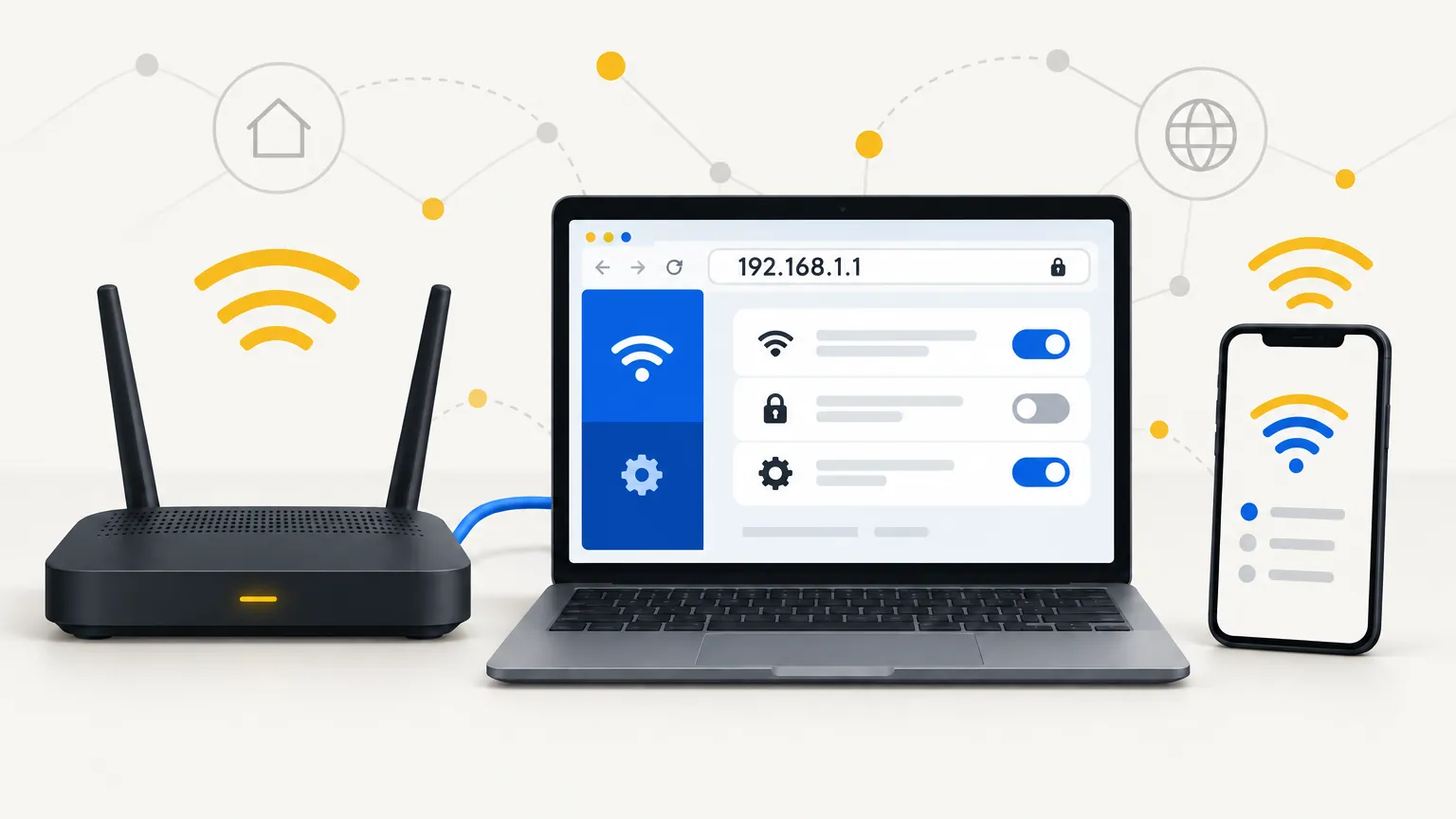
192.168.1.1 is a private IP address that many home routers use for their built-in settings page. Type it into a browser while you're connected to the router, sign in, and the admin panel opens. That's where you rename your Wi-Fi, change passwords, see who's connected and adjust how the network behaves.
Not every router uses this address, though. The steps below start with the quick login. After that, you'll see how to confirm your router's real IP and what to do when the page refuses to load.
What Is 192.168.1.1?
192.168.1.1 is a private IPv4 address, and on many home networks it belongs to the router. In that role it's called the default gateway. That's the device your phone and laptop hand their traffic to when it needs to leave the house.
It isn't a website. The address only answers inside your own network, and what sits behind it depends on how that network is set up.
Is 192.168.1.1 a Private Address?
Yes. It sits in the 192.168.0.0 to 192.168.255.255 block, one of three ranges reserved for private networks by RFC 1918. These addresses aren't routed across the public internet, so every household can reuse them without clashing.
Why So Many Routers Ship With It
Manufacturers want a predictable starting point, so printed labels and setup guides work out of the box. Ending in .1 gives the router an easy-to-remember spot and leaves the rest of the range for your devices.
What You Can Change Once You're Signed In
Once you're in, you control most of your home network from one place. The exact options depend on your model and firmware, but a typical admin panel lets you manage:
- The Wi-Fi network name, also called the SSID
- The Wi-Fi password and security type
- The administrator password that protects this panel
- LAN (home network) and WAN (internet connection) settings
- DHCP, the feature that hands out local IP addresses
- DNS, the servers that turn website names into addresses
- Connected devices, sometimes with an option to block one
- A guest network for visitors
- Firewall and other security options
- Firmware updates
Equipment supplied by an internet provider may hide some of these or move them into the provider's app.
How to Log In to 192.168.1.1 in 6 Steps
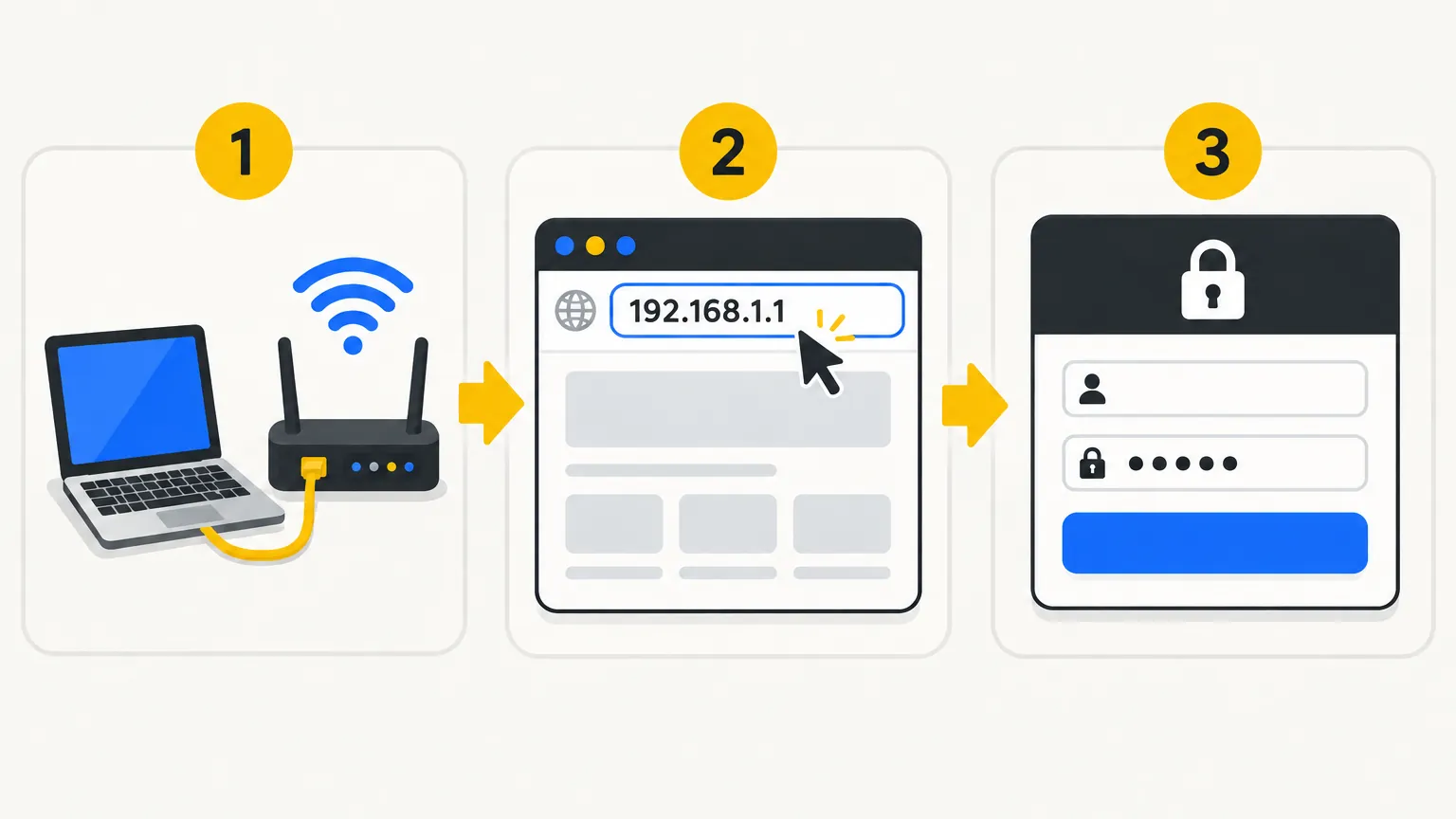
Logging in usually takes a minute or two once you know the address and password. Use any device connected to the router, and type the address into the browser's address bar, never a search box.
- Connect to your router
Join the router's Wi-Fi or plug in an Ethernet cable. The admin page usually answers only devices on that local network, not over mobile data.
- Open a web browser
Chrome, Edge, Firefox and Safari all work. A private window is handy because old cookies and cached pages can't get in the way there.
- Enter 192.168.1.1
Click the address bar, type
192.168.1.1using the number one, and press Enter. If nothing loads, try addinghttp://in front. - Open the login page
A sign-in box should appear within a few seconds. If search results show up instead, the address landed in a search field, so retype it.
- Enter your credentials
Type the admin username and password. Use the ones printed on the router's label, or the ones you set earlier. Watch capital letters too.
- Access the admin dashboard
After signing in, the dashboard opens, often showing connection status first. Menus differ between brands, so look around before you change anything.
192.168.1.1 Username and Password: Common Defaults
There's no single username and password for 192.168.1.1. Each manufacturer picks its own defaults, and many change them from one model to the next.
Older routers often shipped with simple pairs like the ones below. Newer models usually print a unique password on a sticker or make you create one the first time you sign in. The sticker is usually on the bottom or back of the router. Gear from your internet service provider (ISP) can follow its own rules, sometimes managed through the provider's app.
| Username | Password |
|---|---|
admin | admin |
admin | password |
admin | 1234 |
admin | (leave it blank) |
If you or a technician changed the login at any point, these defaults stop working. Only the new details will get you in, unless a factory reset brings back the originals.
Before You Log In: What You Need
Six things need to be in place before the login page will cooperate:
- A router that's switched on and finished starting up
- A phone, tablet or computer to work from
- A Wi-Fi or Ethernet link between that device and the router
- The router's actual address (here's how to find it)
- Any up-to-date web browser
- The admin username and password, not the Wi-Fi password
Find Your Router's Real IP Address
Your device already knows the router's address, so check it instead of guessing. Look for a field named Default Gateway, Gateway or Router, and type that number into your browser.
Windows 10 and 11
Search for cmd and open Command Prompt. Run ipconfig and scroll to the section for your Wi-Fi or Ethernet adapter. Microsoft's ipconfig reference explains that the command lists each adapter's settings, including its default gateway. On a home network, that Default Gateway line is your router.
Android Phones and Tablets
Open Settings, go to Wi-Fi and tap your connected network or the gear beside it. Look for Gateway or Router, sometimes under Advanced. Pixel phones start at Network & internet → Internet.
iPhone and iPad
Go to Settings → Wi-Fi and tap the (i) button next to your network. Under IPv4 Address, the Router line shows the gateway.
Mac (macOS)
Choose Apple menu → System Settings → Network, pick your connection and click Details. The TCP/IP tab lists it as Router.
192.168.1.1 Not Opening? Work Through These Fixes
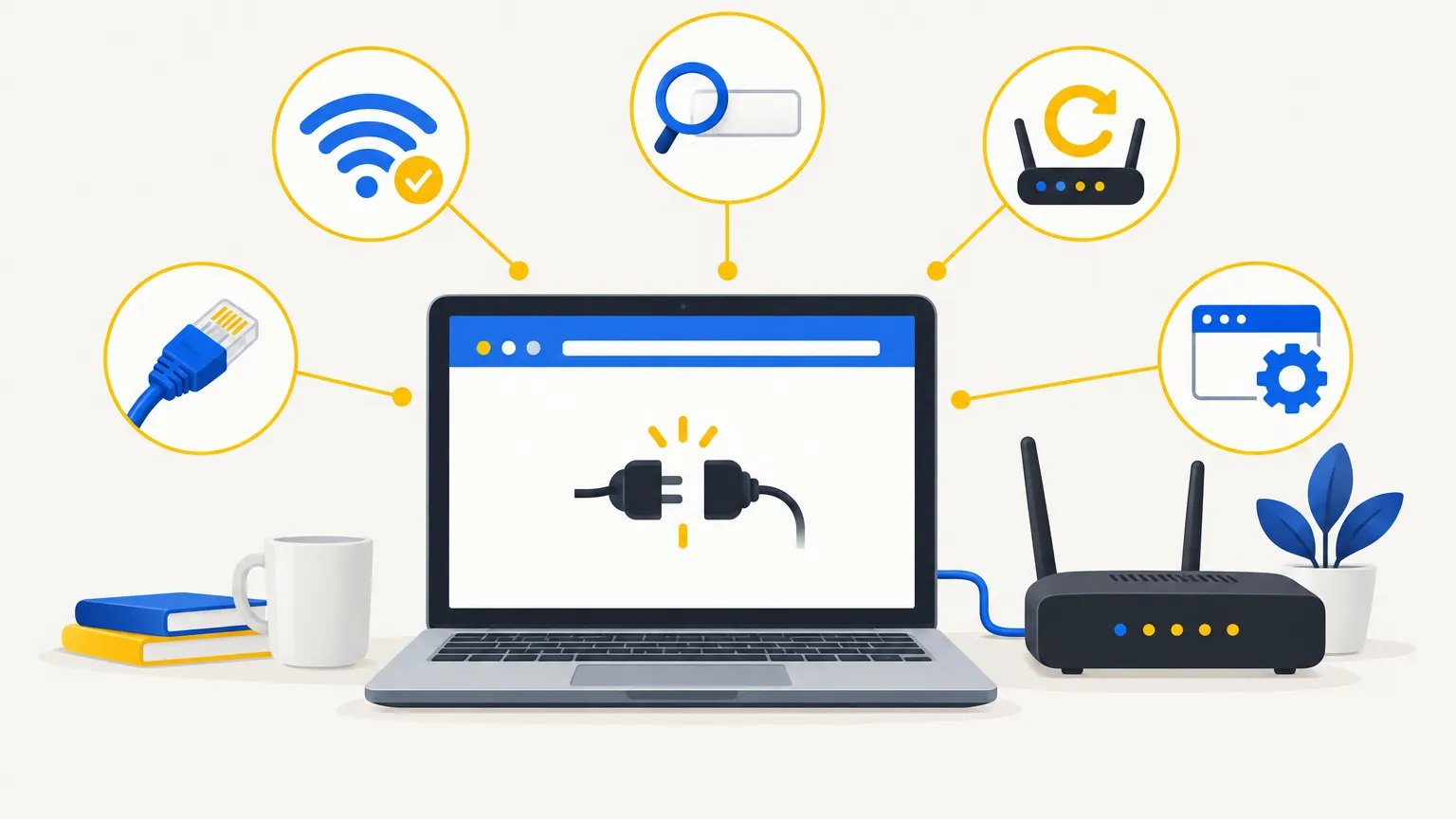
When the login page won't load, the cause is usually simple. Start with the first check and stop as soon as the page appears.
Confirm You're on the Right Network
Your device must be joined to the router you want to manage, not a neighbor's network or a hotspot. On a phone, switching off mobile data for a moment can help.
Check the Gateway Address Again
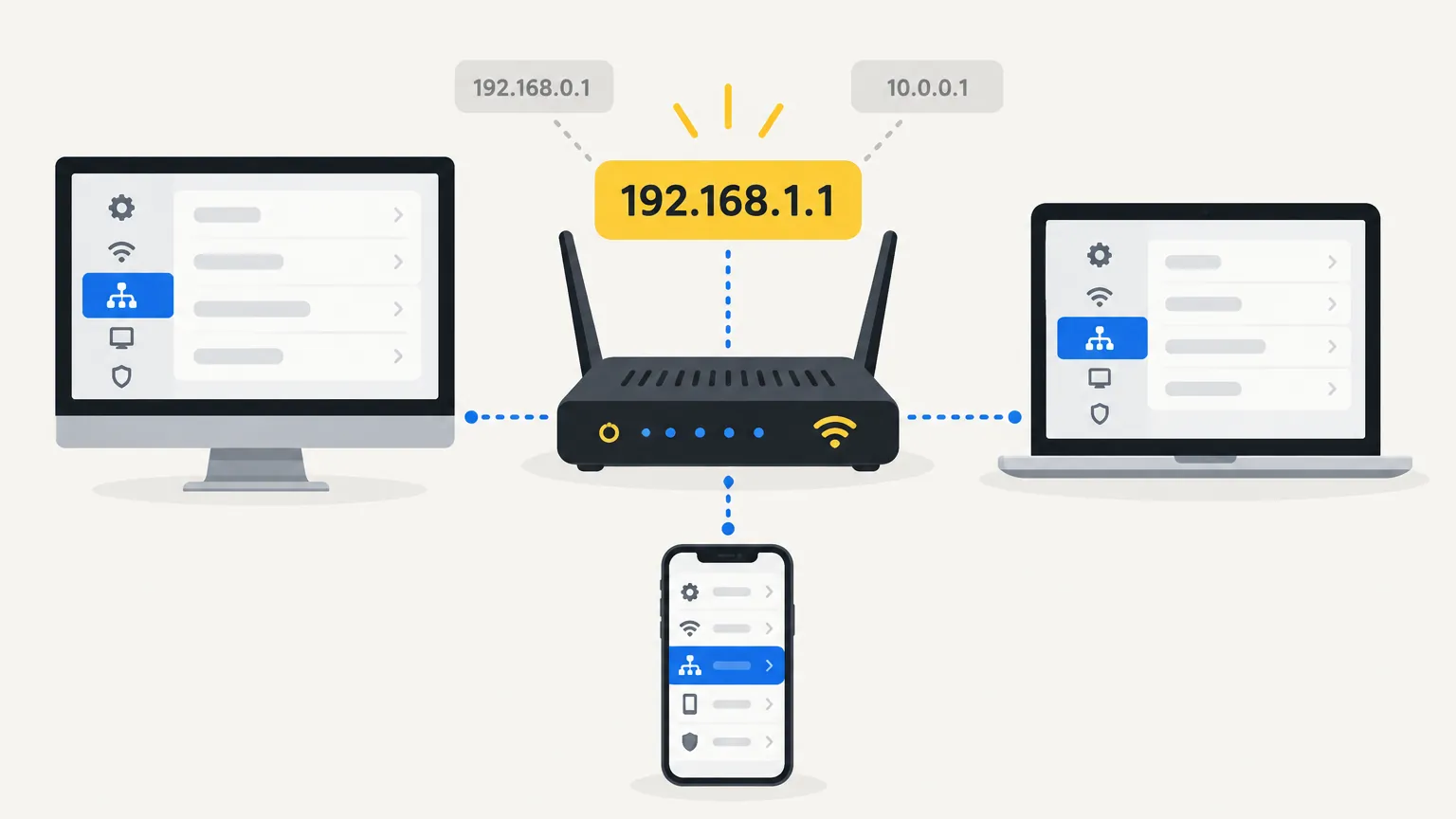
If your gateway reads 192.168.0.1 or 10.0.0.1, then 192.168.1.1 won't load. Use the number from your device's network details.
Look for Typing Mistakes
One wrong character breaks the address. Anything containing a letter isn't an IP address, so browsers usually pass it to a search engine or show an error.
192.168.1.1Correct: four numbers, three dots192.168.l.lLetter l in place of 1192.168.1.lEnds in a letter192.168.11Missing a dot, so browsers read it as192.168.0.11
Check the address you typed
Runs only in your browser. Nothing is sent.
Paste what you entered. The checker looks for letters typed in place of digits, commas or spaces, missing or extra number groups, and numbers above 255.
Switch to Another Browser
Try Chrome, Edge, Firefox or Safari. A different browser skips a stale cache or an extension that might be interfering.
Test From a Second Device
If your phone opens the page but your laptop can't, the problem lives on the laptop. Its network settings or security software are the usual suspects.
Plug In an Ethernet Cable
A cable rules out weak or dropping Wi-Fi. Connect the computer to one of the router's LAN ports.
Restart the Router
Unplug the router, wait at least 30 seconds, then plug it back in. Give it a few minutes to start fully before trying again.
Pause Your VPN or Proxy
A VPN or proxy can route requests away from your home network, so the router never sees them. Switch it off briefly, then try again.
When 192.168.1.1 Isn't Your Router's Address
Plenty of routers use a different address, so a failed login doesn't mean anything is broken. Manufacturers choose their own defaults, and a single brand may use several across its lineup.
The address can also change later. Someone may have moved the router to a new range during setup. ISPs often configure their gateways differently, and a mesh system or second router can sit at another address entirely.
Besides 192.168.1.1, you'll often see 192.168.0.1, 192.168.2.1 or 10.0.0.1. Whatever your network uses, trust the Default Gateway or Router value on your device.
Resetting a Router You Can't Log In To
A factory reset returns the router to its original settings, including the default login. Treat it as a last resort, since every custom setting disappears.
- Leave the router on
Keep it plugged in.
- Find the Reset button
It's usually a small recessed hole on the back or underside.
- Press and hold it
Use a paper clip. Hold times range from a few seconds to 15 or more, so follow your manual.
- Wait for the restart
The lights blink or cycle while it reboots.
- Reconnect
Join the default Wi-Fi from the label, or use a cable.
- Set it up again
Sign in with the default details and rebuild your settings.
What a Factory Reset Wipes
- Your Wi-Fi name and password
- Your custom admin login
- DNS settings
- Port forwarding rules
- Any other custom settings
Changing Your Wi-Fi Name and Password
Both settings usually live in the same menu, labeled Wireless, Wi-Fi or WLAN. Dual-band routers may show separate fields for 2.4 GHz and 5 GHz.
Rename the Network (SSID)
The SSID is the name that appears when people look for Wi-Fi. Pick something you'll recognize that doesn't reveal your name or address.
Set a New Wi-Fi Password
Open the security section and enter a long passphrase. Choose WPA3 when available, or WPA2/WPA3 Transitional mode for older devices, as Apple's router recommendations suggest.
Save and Reconnect Your Devices
Click Save or Apply. Devices on that Wi-Fi network will drop off, including yours if you're connected wirelessly, and need the new details to rejoin. Devices plugged in by Ethernet don't need the Wi-Fi password. If a phone or laptop refuses to reconnect, forget the network on it and join again.
Router Brands That May Use 192.168.1.1
Several big brands use 192.168.1.1 on at least some models, but none use it on everything. These notes come from each maker's own support pages (how we check facts).
- Linksys: 192.168.1.1 on many models, or myrouter.local
- NETGEAR: 192.168.1.1 or 192.168.0.1, and routerlogin.net on most home models
- TP-Link: some models, such as DSL modem routers; many others use 192.168.0.1
- ASUS: either 192.168.1.1 or 192.168.50.1, depending on the model
- D-Link: some ADSL routers; many of its other routers use 192.168.0.1
- Tenda: 192.168.0.1 or 192.168.1.1
Brand not listed, or the address still fails? Your gateway value settles it.
192.168.1.1 vs Other Common Router IPs
These four addresses turn up on many home networks, and they all do the same job. What matters is which one your router uses.
| Address | Where you may see it |
|---|---|
192.168.1.1 | A widely used private gateway address. It appears on many routers and modem-router combos, including some Linksys, NETGEAR and ASUS models. |
192.168.0.1 | A popular alternative default. Many TP-Link, D-Link and Tenda routers use it, although not every model from those brands does. |
10.0.0.1 | Used by some routers and ISP gateways. Xfinity, for instance, serves its gateway admin tool here once access is switched on. |
192.168.2.1 | Found on certain router models, including some Belkin routers. Check your own gateway value before assuming it applies to you. |
192.168.1.1 Login Errors and Quick Fixes
Most login errors have simple causes. Find your message below and try the matching fix.
| Error | Possible solution |
|---|---|
| Login page won't open | Check the router IP against your device's Default Gateway, then retype it in the address bar. |
| Connection timed out | Confirm you're on the router's main network, not mobile data or a guest network. |
| Connection refused | Let the router finish starting, then try https:// instead of http://, or the reverse. |
| Invalid password | Recheck capital letters and the label. Use the admin password, not the Wi-Fi one. |
| Wrong page loads | You may be reaching a modem or extender. Confirm your gateway and use that address. |
| Page keeps loading | Close and reopen the browser, try a private window, then restart the router. |
Logging In to 192.168.1.1 From Your Phone
A phone works just as well as a computer, provided it's connected to your router's Wi-Fi. The same steps work on Android phones as well as on iPhones and iPads.
- Connect your phone to Wi-Fi
Join your home network in Wi-Fi settings. Pause mobile data briefly so the request doesn't leave through your carrier.
- Open your mobile browser
Chrome, Safari, Samsung Internet or Firefox will all do. Tap the browser's own address bar, not a home-screen search widget.
- Enter 192.168.1.1
Type it carefully. Phone keyboards like to autocorrect or add spaces, so check the address before you press Go.
- Wait for the login page
It should load within seconds. Zoom in or turn the phone sideways if the page wasn't designed for small screens.
- Enter your admin credentials
Use the router's admin login from its label or your notes. Your phone's saved Wi-Fi password won't work here.
- Open router settings
Once signed in, tap through the menus. On small screens, some options hide behind a menu icon or Advanced tab.
Forgot the 192.168.1.1 Username or Password?
First, work out which password you've lost. Your router has two separate logins, one for the admin panel and one for Wi-Fi, and each has a different fix.
Lost the Router Admin Password
This is the password for the admin panel. Work through these options in order:
- Check the sticker on the router and its quick-start guide.
- Look up your model on the manufacturer's support site.
- Use the built-in password reset if your model has one. NETGEAR's only works if password recovery was switched on earlier, and some Linksys routers accept the recovery key printed on the label.
- If nothing works, reset the router.
Lost the Wi-Fi Password
The Wi-Fi password only lets devices join the network, and it won't open the admin panel. If a computer or phone is still connected, it may be able to show the saved password. Otherwise, sign in to the router and read it in the wireless settings.
When a Factory Reset Makes Sense
Reset only after the other options have failed. It restores the default login, but it also erases your custom setup, so you'll rebuild the network from scratch.
Changing DNS Servers Through 192.168.1.1
Changing DNS on the router applies the new servers to every device that takes its settings automatically. Menu names vary between brands, so treat the labels below as rough pointers.
- Open the router admin panel
Sign in at your gateway address with the admin username and password.
- Find Internet, WAN or DNS settings
DNS fields often sit under Internet, WAN, Network or DHCP. Some routers keep them behind an Advanced tab.
- Enter the desired DNS servers
Switch from automatic to manual, then enter a primary and secondary server. Copy them exactly from your chosen provider's own page.
- Save and apply changes
Click Save or Apply. Devices pick up the new servers when they reconnect, so restarting them speeds things along.
Router Configuration Settings, Explained
Most admin panels group their options into the areas below. Names and layouts differ, and simpler models may skip a few, but each area does the same basic job.
LAN Settings
Set the router's own local address and subnet. This is where you'd move it from 192.168.1.1 to something else.
WAN / Internet Settings
Define how the router connects to your ISP: dynamic IP, static IP or PPPoE, which needs a provider username and password.
DHCP Settings
Choose the range of addresses handed to devices, how long each lease lasts, and which devices always get the same one.
Wireless Settings
Adjust network names, passwords, security mode, bands and channels for each radio.
DNS Settings
Keep your ISP's DNS servers or enter your own. See the DNS steps above.
Security Settings
Covers the firewall, remote management and often WPS. Check that remote management stays off unless you actually need it.
Guest Network
Creates a separate Wi-Fi network for visitors, usually with its own password and limited access to your other devices.
Port Forwarding
Sends specific incoming traffic to one device, such as a game console or home server. Open only the ports you actually use.
QoS (Quality of Service)
Lets you give certain devices or activities, like video calls, priority when the connection is busy.
Firmware Updates
Installs the router's software updates, either automatically or from a file on the maker's site. Never unplug the router mid-update.
LAN IP vs Public IP vs 192.168.1.1: The Difference
Your home network runs on two kinds of addresses. Private LAN addresses work only inside the house: the router takes one as the gateway and gives one to each device. Your public IP is usually the single address your ISP assigns to the router's internet side, and it's normally what websites see.
The router links the two with NAT (network address translation), which rewrites outgoing traffic so every device can share that one public address. For example, the router might sit at 192.168.1.1, your laptop at 192.168.1.20 and your phone at 192.168.1.21. Both devices still reach the internet through the public IP from your provider. Device addresses can change over time, while the router's usually stays put.
Internet side
Websites and apps
See only your public IP
Public IP
203.0.113.24
Assigned by your ISP (example address)
Router
192.168.1.1
Default gateway
Translates addresses (NAT)
Your home network (LAN)
Laptop
192.168.1.20
Phone
192.168.1.21
Questions People Ask About 192.168.1.1
Quick answers to what readers ask most, including router apps and reaching the admin page when the internet is down.
What is 192.168.1.1 used for?
Routers use it in two ways: as the gateway your devices send internet traffic through, and as the address of the settings page you open in a browser.
How do I log in to 192.168.1.1?
Connect to the router, type the address into your browser's address bar and sign in. Some routers also accept a web name, such as routerlogin.net or myrouter.local.
What is the default username for 192.168.1.1?
On many routers it's admin, but not all. Some newer models skip the username entirely and only ask for a password, so check your router's label or manual.
What is the default password for 192.168.1.1?
There's no universal one. Look for a unique password on the router's sticker, or use the one you created at setup. Many routers treat passwords as case-sensitive.
Why is 192.168.1.1 not opening?
Usually the router uses another address or your device isn't on its network. If it worked before, someone may have changed the LAN address or added a second router.
What is 192.168.l.l?
It's 192.168.1.1 mistyped with the lowercase letter l. It often happens when copying from fonts where l and 1 look alike, so type the address by hand.
Can I access 192.168.1.1 from my phone?
Yes, as long as the phone is connected to the router's Wi-Fi. Many router makers, NETGEAR included, also offer a phone app that handles the same settings.
Can I access 192.168.1.1 without internet?
Yes. The admin page runs on the router itself, so it loads even when the internet is down. That makes it useful for checking the router's connection status.
Quick Recap
192.168.1.1 is a common address for a router's settings page, but it's only one of several. Check your Default Gateway or Router value first, and you won't waste time on the wrong number.
Logging in takes a local connection plus the admin login, not the Wi-Fi password. Inside, you can rename the network, update passwords and adjust other settings. When the page won't load, begin with the simple checks, and save the factory reset for when nothing else works.